
How to Know If Your Phone Is Hacked (and What to Do)
Your battery is suddenly dying by lunchtime, a strange app appears on your home screen, or a friend says you sent them a weird link. It is easy to panic and assume your phone has been hacked. Sometimes it has. Often it is just an old battery or a buggy update.
This guide explains how to know if your phone is hacked, which signs actually matter, how to check an iPhone or Android phone step by step, and exactly what to do if you find a problem. It also clears up some popular myths you may have seen on TikTok and Reddit.
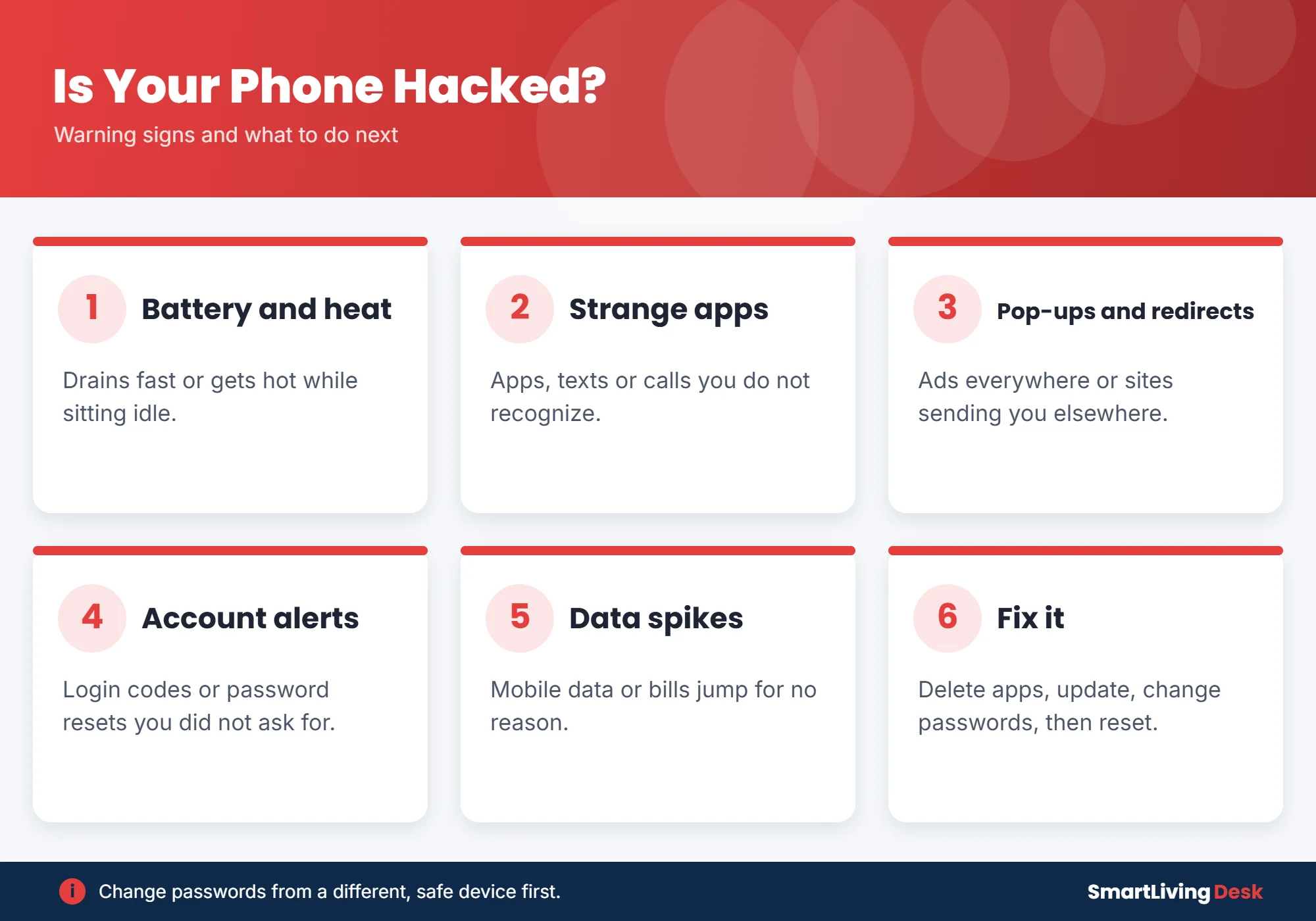
Quick answer: Common signs your phone is hacked include fast battery drain, overheating when idle, apps you did not install, pop-up ads, unexplained data use or charges, texts or calls you did not make, and login codes or password reset emails you did not request. To check, review your installed apps, battery and data usage, and account activity, and run a security scan. If you find a problem, remove suspicious apps, update your phone, change your passwords from another device, turn on two-factor authentication and, if needed, factory reset the phone.
10 Signs Your Phone Might Be Hacked
Security experts at Tom’s Guide and other sources point to the same core warning signs. One sign alone is rarely proof. A few together are worth investigating.
- Battery drains much faster than usual, even with normal use.
- Phone gets hot when idle, a sign something may be running in the background.
- Apps you do not recognize appear on your phone.
- Pop-up ads everywhere, even outside your browser.
- Websites look odd or redirect you to spammy pages.
- Data usage or bills spike without explanation.
- Texts, calls or posts you did not send show up in your history or friends mention them.
- Login codes or password reset emails arrive that you did not request.
- Camera or microphone indicator turns on when you are not using them.
- Phone is slow, crashes or restarts on its own.
What Is Probably Not Hacking
Many symptoms have everyday causes, which is worth knowing before you factory reset anything:
| Symptom | Common innocent cause |
|---|---|
| Battery drain | Aging battery, a new update, or a power-hungry app |
| Overheating | Charging, gaming, hot weather or a weak signal |
| Slow phone | Low storage or too many apps open |
| Pop-ups in the browser | A shady website, not your phone itself |
| Strange texts to friends | A hacked social media or email account, not the phone |
Do dial codes like *#21# show if you are hacked?
No. Codes like *#21# show whether call forwarding is turned on with your carrier. They are useful for spotting forwarded calls, but they cannot detect spyware or tell you if your phone is hacked.
How to Check Your Phone Step by Step
On iPhone
- Go to Settings, then Battery to see which apps use the most power.
- Check Settings, then Privacy & Security to review which apps have camera, microphone and location access.
- Look for unknown VPN or device management profiles under Settings, then General, then VPN & Device Management.
- Use Safety Check (under Privacy & Security) to review who and what has access to your information.
- Check your Apple Account for devices you do not recognize.
On Android
- Open Settings, then Battery and Data usage to spot apps using unusual amounts.
- Review Apps for anything you do not remember installing.
- Open the Play Store, tap your profile, then Play Protect, and run a scan.
- Check Device admin apps (often under Security settings) for anything unfamiliar.
- Review your Google Account security page for unknown devices and sign-ins.
What to Do If Your Phone Is Hacked
- Disconnect from Wi-Fi and mobile data to stop any data being sent.
- Delete suspicious apps and remove unknown profiles or device admin apps.
- Update your phone to the latest software version.
- Change your passwords from a different, safe device, starting with email, banking and Apple or Google accounts.
- Turn on two-factor authentication everywhere you can.
- Check bank and card statements and contact your bank about anything odd.
- Warn your contacts not to click links that seem to come from you.
- Factory reset as a last resort, after backing up photos and contacts. Restore only your personal data, not old app data.
- Call your carrier if you see unknown charges or suspect a SIM swap.
How to Keep Your Phone Safe
- Install updates as soon as they arrive.
- Only download apps from the official App Store or Google Play.
- Use a strong passcode and turn on Face ID, Touch ID or fingerprint unlock.
- Do not tap links in unexpected texts or emails.
- Use a password manager and unique passwords.
- Avoid public Wi-Fi for banking, or use a trusted VPN.
- Add a PIN to your mobile account with your carrier to help prevent SIM swaps.
Worried about other privacy settings? See how to turn off Meta AI, how to turn off Gemini and how to turn off read receipts on iPhone.
Frequently Asked Questions
Can someone hack my phone just by calling me?
For regular users this is extremely rare. Most phone hacks happen through malicious links, fake apps, stolen passwords or SIM swaps.
Can iPhones get hacked?
Yes, though it is less common than on Android. Most iPhone problems come from phishing and stolen Apple Account passwords rather than viruses.
Does a factory reset remove hackers?
A reset removes most malware on the phone, but it does not secure your online accounts. You still need to change passwords and turn on two-factor authentication.
Should I buy antivirus for my phone?
Android users can benefit from Play Protect plus a reputable security app. For iPhone, keeping iOS updated and avoiding phishing matters most.
The Bottom Line
Watch for battery drain, overheating, unknown apps, pop-ups, data spikes and unexpected login codes. Check your apps and accounts, and if something is wrong, remove suspicious apps, update, change passwords from a safe device and reset the phone if needed.
This article is for general information. If you believe you are a victim of fraud or identity theft, contact your bank and local authorities.