
What Is Screen Mirroring? How to Use It on iPhone, Android, PC and Mac
Want to show vacation photos on the big TV, present slides in a meeting or watch a video from your phone on a larger screen? Screen mirroring makes it easy, often without any cables. So, what is screen mirroring, and how do you use it on an iPhone, Android phone, Windows PC or Mac? This guide covers everything, including fixes for when screen mirroring is not working.
Quick answer: Screen mirroring is a feature that wirelessly shows an exact, real-time copy of your phone, tablet or computer screen on another display, such as a smart TV, streaming device or projector. On iPhone and Mac it uses Apple AirPlay, on many Android phones it uses Smart View, Cast or Miracast, and on Windows PCs it uses Miracast (Windows + K). Both devices usually need to be on the same Wi-Fi network.
What Is Screen Mirroring?
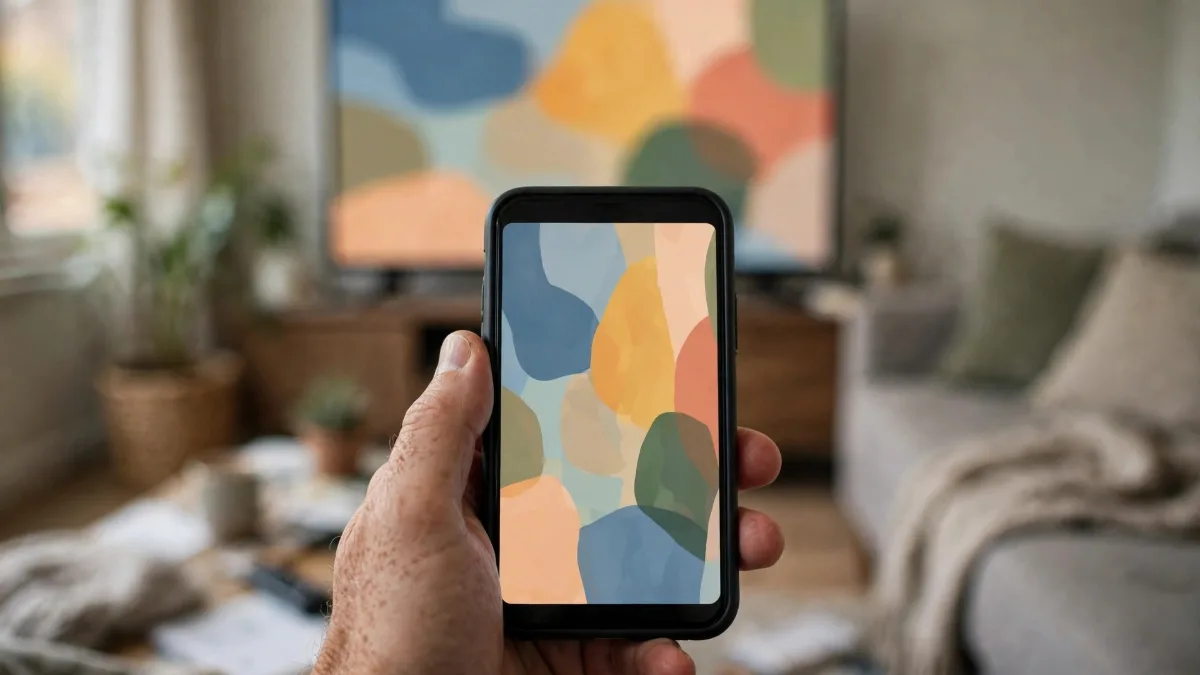
Screen mirroring copies everything on your device’s screen, including apps, photos, videos and menus, and displays it live on a second screen. When you swipe, tap or open an app, the same thing happens on the TV. It is different from simply plugging in an HDMI cable because it works wirelessly, using technologies like:
- AirPlay: Apple’s system for iPhone, iPad and Mac. Works with Apple TV and many AirPlay 2 smart TVs from brands like Samsung, LG, Sony, Vizio and Roku.
- Miracast: a wireless display standard built into many Android phones and Windows PCs.
- Google Cast: used by Chromecast and Google TV devices, and by Pixel phones to cast the screen.
- Brand features: such as Samsung Smart View.
Screen Mirroring vs. Casting: What Is the Difference?
| Screen mirroring | Casting | |
|---|---|---|
| What shows on TV | Your entire screen, exactly | Only the video or music you choose |
| Can you use your phone for other things? | No, everything you do is shown | Yes, the TV streams on its own |
| Battery use | Higher | Lower |
| Best for | Photos, presentations, apps without a cast button | Netflix, YouTube and streaming apps |
How to Screen Mirror on Every Device
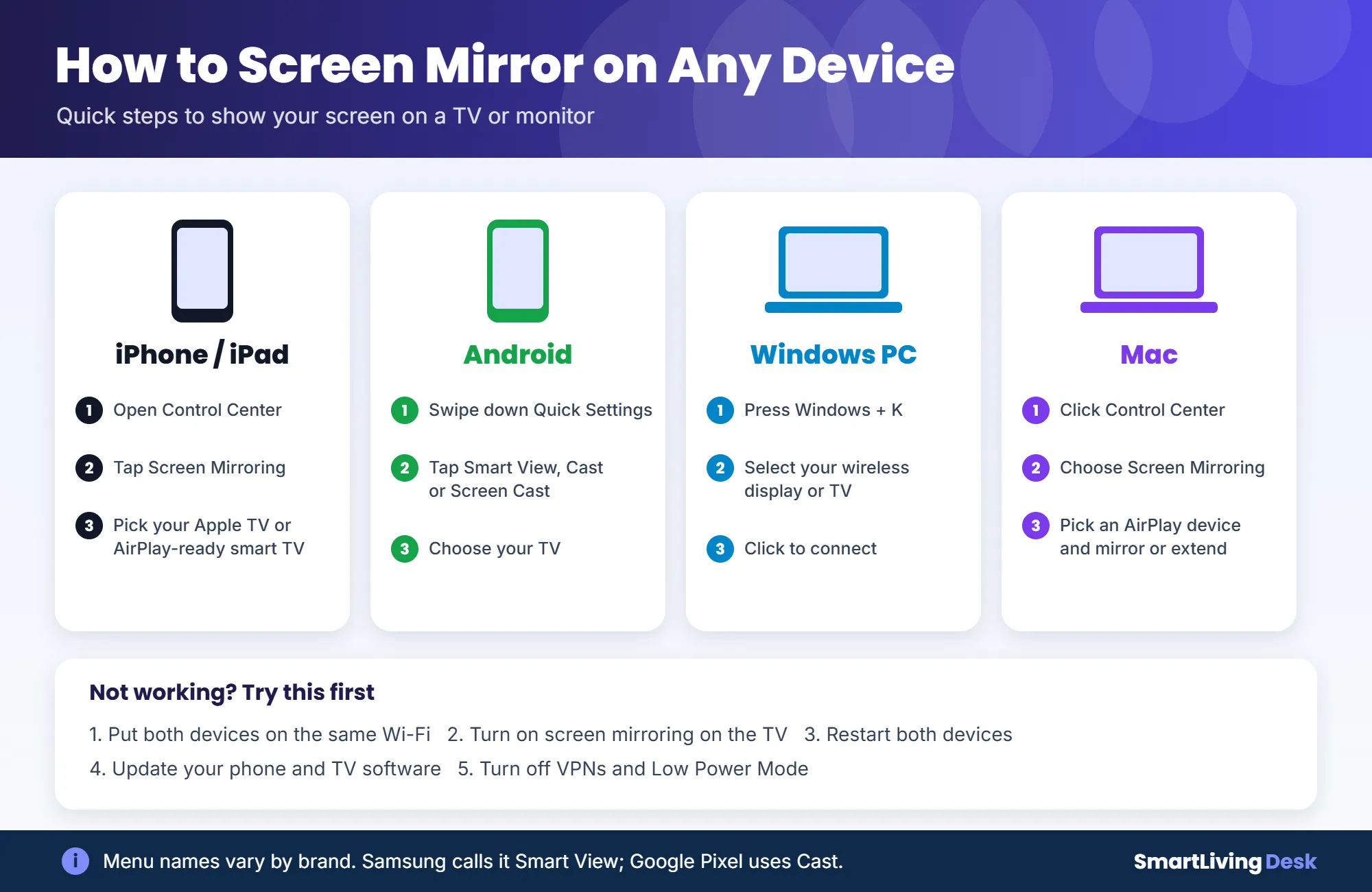
How to screen mirror on iPhone or iPad
- Connect your iPhone and TV to the same Wi-Fi network.
- Open Control Center by swiping down from the top-right corner.
- Tap the Screen Mirroring icon (two overlapping rectangles).
- Choose your Apple TV or AirPlay-compatible smart TV. If a code appears on the TV, enter it on your iPhone.
- To stop, open Control Center, tap Screen Mirroring and select Stop Mirroring.
How to screen mirror an iPhone to a Samsung, LG or Roku TV
Many newer Samsung, LG, Sony, Vizio and Roku TVs support AirPlay 2. Make sure AirPlay is turned on in the TV settings (on Roku, check Settings and then Apple AirPlay and HomeKit), then follow the iPhone steps above. Older TVs without AirPlay may need an Apple TV, a Roku device or a mirroring app.
How to screen mirror on Android
- Swipe down twice to open Quick Settings.
- Tap Smart View (Samsung), Screen Cast or Cast. On Pixel phones, you can also use the Google Home app and choose “Cast my screen.”
- Select your TV or Chromecast and confirm.
How to screen mirror on Windows
Press Windows + K to open the Cast menu, then choose your wireless display, smart TV or Miracast adapter. You can also go to Settings, then System, then Display, and select “Connect to a wireless display.”
How to screen mirror on a Mac
Click Control Center in the menu bar, select Screen Mirroring and choose your Apple TV or AirPlay-compatible TV. You can then mirror your display or use the TV as a separate extended screen.

Screen Mirroring Not Working? Try These Fixes
- Check the Wi-Fi: both devices must be on the same network. Guest networks and some office networks block mirroring.
- Turn on mirroring on the TV: some TVs and Roku devices require you to enable screen mirroring or AirPlay in settings.
- Restart both devices and your router.
- Update software on your phone, computer and TV.
- Turn off VPNs and Low Power Mode, which can interfere.
- Move closer to the router and the TV to reduce lag.
- No sound? Check the TV volume and make sure audio output is set to the TV, not your phone or a Bluetooth speaker.
Frequently Asked Questions
Is screen mirroring safe?
Yes, on your own home network. Be careful in public or shared spaces, since anyone looking at the display can see your notifications and messages. Turn on Do Not Disturb while mirroring.
Can I screen mirror without Wi-Fi?
Some methods, like Miracast and peer-to-peer AirPlay, can connect directly without a router. You can also use an HDMI adapter cable for a reliable wired connection.
How do I turn off screen mirroring?
On iPhone and Mac, open Control Center, tap Screen Mirroring and choose Stop Mirroring. On Android, tap the Smart View or Cast tile again and disconnect.
Does screen mirroring use data?
Mirroring itself uses your local Wi-Fi, not mobile data. Streaming online video while mirroring still uses your internet connection.
The Bottom Line
Screen mirroring wirelessly shows your phone, tablet or computer screen on a bigger display. Use AirPlay on Apple devices, Smart View or Cast on Android and Windows + K on a PC. If it does not connect, check that both devices share the same Wi-Fi, restart them and update your software. For more simple phone tricks, see how to make a GIF from a video or hide your number with *67.