

How to Clear Cache on Mac (Safari, Chrome, Firefox and Apps)
Web pages that will not load properly, a browser that feels sluggish or storage that keeps filling up are all common reasons to clear the cache on a Mac. Cache files help websites and apps load faster, but over time they can become outdated or corrupted. The good news is that clearing them is quick and safe when you know where to look. Here is exactly how to clear cache on Mac for Safari, Chrome, Firefox and your user library, on any MacBook Air, MacBook Pro or desktop Mac.
Quick answer: To clear cache on a Mac in Safari, open Safari Settings, go to the Advanced tab, turn on “Show features for web developers,” then choose Develop > Empty Caches from the menu bar. In Chrome, press Shift-Command-Delete and select “Cached images and files.” To clear app cache, open Finder, choose Go > Go to Folder, type ~/Library/Caches and delete the contents of the folders for apps you have quit. Restart your Mac afterward.
What Is Cache on a Mac?
Cache is temporary data stored by your browser, apps and macOS to speed things up. There are three main types:
- Browser cache: images, scripts and pages saved by Safari, Chrome or Firefox.
- App (user) cache: files apps store in your user Library folder.
- System cache: files macOS manages on its own. In most cases, you should let macOS handle these.
How to Clear Cache on Mac: 6 Methods
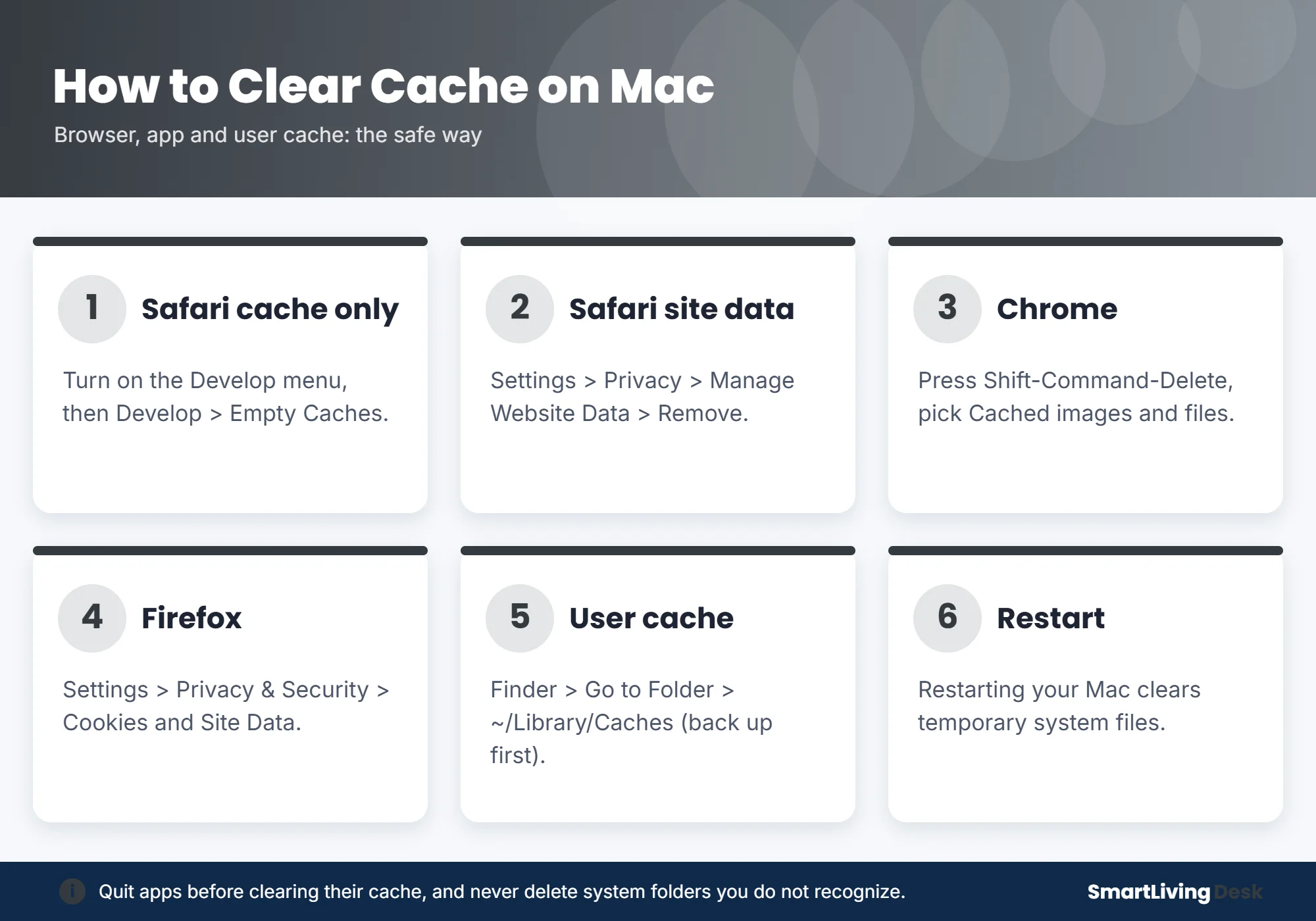
1. Clear Safari cache only (keeps history and logins)

- Open Safari, then click Safari > Settings in the menu bar (called Preferences on older macOS versions).
- Click the Advanced tab.
- Check Show features for web developers (on older versions, “Show Develop menu in menu bar”).
- Click Develop in the menu bar and choose Empty Caches. You can also press Option-Command-E.
Safari clears the cache immediately without a confirmation window. This method, described by Intego’s Mac Security Blog, keeps your history and saved logins.
2. Clear Safari website data or history
To remove cookies and stored data for all or individual websites, go to Safari > Settings > Privacy and click Manage Website Data. Select a site and click Remove, or click Remove All. To clear everything, including history, choose History > Clear History and pick a time range. Note that this may sign you out of websites.
3. Clear Chrome cache on Mac
- Open Chrome and press Shift-Command-Delete (or go to the three-dot menu > Delete browsing data).
- Choose a time range, such as “All time.”
- Select Cached images and files. Uncheck history and passwords if you want to keep them.
- Click Delete data.
4. Clear Firefox cache on Mac
Open Firefox, go to Settings > Privacy & Security, scroll to Cookies and Site Data and click Clear Data. Check Cached Web Content and click Clear.
5. Clear user (app) cache

- Quit the apps whose cache you want to clear.
- Back up your Mac with Time Machine or another backup, just in case.
- In Finder, click Go > Go to Folder (Shift-Command-G).
- Type ~/Library/Caches and press Return.
- Open the folder for a specific app and delete the files inside it. Delete the contents, not the folders themselves.
- Empty the Trash and restart your Mac.
Only remove cache for apps you recognize. Avoid deleting files in system folders, and do not delete cache for an app while it is running.
6. Restart your Mac
A simple restart clears many temporary files and memory caches automatically. If your Mac feels slow, try restarting before anything else.
Which Method Should You Use?
| Problem | Best fix |
|---|---|
| A website shows old content or will not load | Empty Safari caches or clear that site’s data |
| Browser feels slow | Clear the browser cache |
| An app keeps crashing or acting strange | Quit it and clear its folder in ~/Library/Caches |
| Storage is almost full | Check System Settings > General > Storage first |
| Mac feels sluggish overall | Restart and keep macOS updated |
Is It Safe to Clear Cache on a Mac?
Yes, clearing browser cache is completely safe; websites will simply reload fresh files. Clearing user cache is also generally safe if you quit apps first, back up your Mac and avoid deleting system files. Apps will rebuild their cache as you use them, so you may notice slightly slower loading at first.
Frequently Asked Questions
How do I clear cache on a MacBook Air or MacBook Pro?
The steps are the same on every Mac running a recent version of macOS: use Safari’s Develop menu, your browser’s clear data option or the ~/Library/Caches folder.
Will clearing cache delete my passwords?
Emptying the cache does not delete saved passwords. Clearing history or all website data may sign you out of sites, but passwords saved in iCloud Keychain remain.
How often should I clear cache on my Mac?
Only when you have a problem, like pages not loading or low storage. Clearing it constantly is not necessary and can make browsing slightly slower until the cache rebuilds.
Do I need a cleaning app to clear cache?
No. The built-in methods above cover most needs. Be cautious with third-party cleaners and download them only from trusted developers.
The Bottom Line
Now you know how to clear cache on Mac: use Develop > Empty Caches in Safari, Shift-Command-Delete in Chrome, the Privacy settings in Firefox and ~/Library/Caches for apps, then restart. Using an iPhone too? See how to clear cache on iPhone and how to screenshot on Mac.
Back up your Mac before deleting files from your Library folder. Smart Living Desk is not affiliated with Apple, Google or Mozilla.