
How to Make a GIF From a Video (5 Easy Ways)
GIFs are everywhere: in group chats, on social media, in work Slack channels and in how-to guides. The good news is that you do not need special skills or expensive software to make your own. If you have a funny clip, a product demo or a favorite movie moment, this guide shows you how to make a GIF from a video on any device, plus the settings that keep your GIF smooth and small.
Quick answer: The easiest way to make a GIF from a video is to use a free online converter such as Ezgif, GIPHY or Canva. Upload your video, trim it to the part you want (2 to 6 seconds works best), choose a size and frame rate, then convert and download the GIF. You can also use built-in tools on iPhone and Samsung phones, Photoshop on a computer, or the free command-line tool FFmpeg.
What You Need Before You Start
- A video file such as MP4, MOV or WebM. Some tools also accept a YouTube or social media link.
- The exact moment you want. Note the start and end time, since shorter GIFs look and load better.
- The right to use the clip. Your own videos are always fine. For movie or TV clips, keep it short, personal and non-commercial.
Method 1: Make a GIF Online (Any Device)
Online GIF makers work in any web browser on Windows, Mac, Chromebook, iPhone or Android. There is nothing to install, which makes them the fastest option for most people.
Using Ezgif
- Go to the Ezgif “Video to GIF” page and upload your video, or paste a video URL.
- Set the start and end time of the part you want to convert.
- Choose a size (480px wide is a safe choice) and a frame rate (10 to 15 fps).
- Click Convert to GIF, preview the result and use the optimize tool if the file is too large.
- Click Save to download your GIF.
Using GIPHY or Canva
GIPHY’s GIF Maker lets you upload a video or paste a YouTube link, trim it and add captions or stickers. Canva is great if you want text, branding or a polished design. Upload your video, edit it in a design, then choose Download and select GIF as the file type. Both offer free options, though you may need a free account.
Method 2: Make a GIF on iPhone
The simplest built-in option on iPhone is the free Shortcuts app from Apple.
- Open the Shortcuts app and tap the Gallery tab.
- Search for GIF and add a shortcut such as “Video to GIF.”
- Run the shortcut, pick a video from your Photos and trim it to the part you want.
- Save the finished GIF to your Photos or share it straight to Messages.
You can also turn a Live Photo into a looping clip. Open it in Photos, tap the Live button and choose Loop or Bounce. Many apps will share it as an animated loop.
Method 3: Make a GIF on Android
Many Samsung Galaxy phones have a GIF maker built into the Gallery app. Open a video in Gallery, play it in the video player and look for the GIF button. Select the part you want, adjust the speed and tap Save. On other Android phones, use an online tool like Ezgif in Chrome, or a well-reviewed GIF maker app from the Google Play Store.

Method 4: Make a GIF in Photoshop
Photoshop gives you the most control over quality, colors and file size, which is useful for professional or marketing GIFs.
- Go to File > Import > Video Frames to Layers and choose your video.
- Select From Beginning to End or drag the handles to pick a section. Check Make Frame Animation and click OK.
- Open Window > Timeline to preview the animation and delete any frames you do not need.
- Go to File > Export > Save for Web (Legacy).
- Choose GIF, set the colors and image size, and set Looping Options to Forever. Click Save.
Method 5: Make a GIF With FFmpeg (Free and Advanced)
FFmpeg is a free, open-source command-line tool for Windows, Mac and Linux. It is perfect if you are comfortable with a terminal and want great quality. This command takes 3 seconds starting at the 5-second mark, resizes it to 480px wide at 12 frames per second, and builds a custom color palette for sharper results:
ffmpeg -ss 5 -t 3 -i input.mp4 -vf "fps=12,scale=480:-1:flags=lanczos,split[s0][s1];[s0]palettegen[p];[s1][p]paletteuse" -loop 0 output.gifChange the numbers after -ss (start time), -t (length), fps and scale to suit your clip.
Which Method Should You Use?
| Method | Best for | Cost | Skill level |
|---|---|---|---|
| Ezgif | Quick conversions on any device | Free | Beginner |
| GIPHY | Sharing GIFs and adding captions | Free | Beginner |
| Canva | Branded GIFs with text and design | Free and paid plans | Beginner |
| iPhone Shortcuts | Making GIFs right on your phone | Free | Beginner |
| Samsung Gallery | Galaxy phone users | Free | Beginner |
| Photoshop | Full control over quality | Paid | Intermediate |
| FFmpeg | Best quality and batch work | Free | Advanced |
Tips for Better GIFs
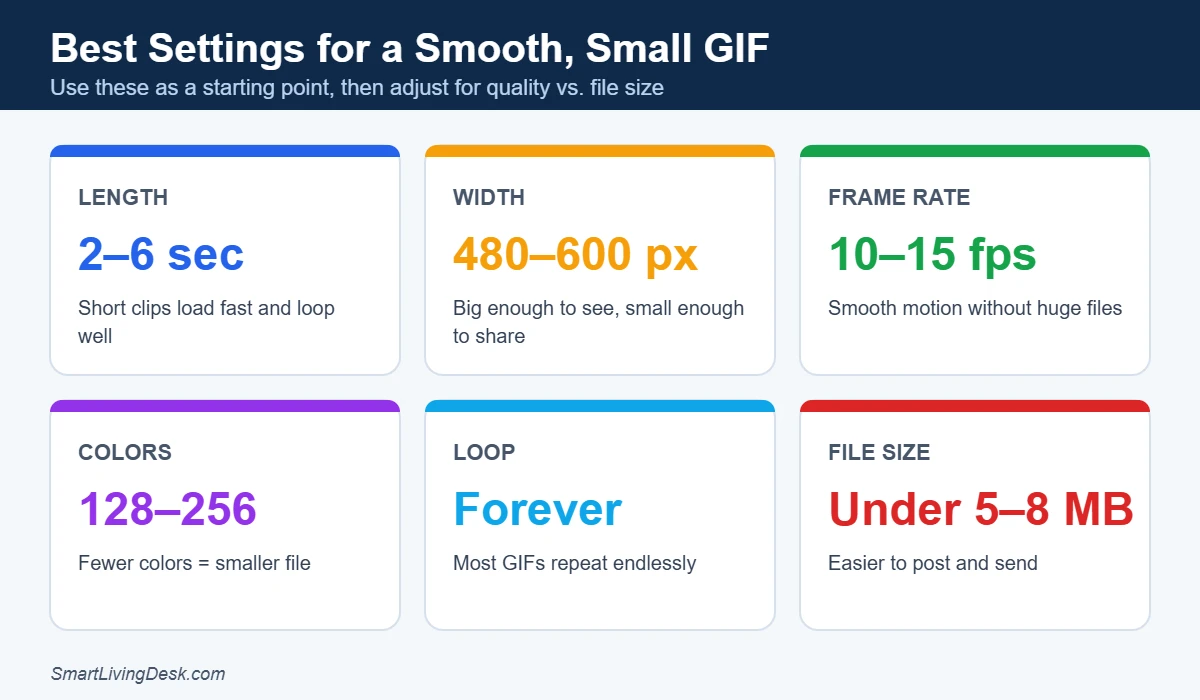
- Keep it short. GIF files grow quickly, so stick to a few seconds of the best moment.
- Lower the size. A 480px-wide GIF is easy to share. Full HD GIFs can be huge.
- Reduce the frame rate. 10 to 15 frames per second still looks smooth.
- Choose a steady clip. Shaky footage and busy backgrounds create larger, grainier files.
- Add text sparingly. Big, bold captions are easy to read on small screens.
- Make it loop nicely. Pick a start and end point that flow into each other.
GIF vs. Video: Which Should You Share?
GIFs autoplay, loop and work almost everywhere, from email to messaging apps, which makes them perfect for reactions and short demos. However, GIFs have no sound and are limited to 256 colors, so files can be larger than an MP4 of the same clip. For long clips, anything with audio or high-quality footage, a short video is usually the better choice.
Frequently Asked Questions
Can I make a GIF from a YouTube video?
Yes. Tools like GIPHY and Ezgif let you paste a YouTube link and choose the part to convert. Only use clips you have permission to share, and keep personal reaction GIFs short.
Why is my GIF file so big?
Length, size and frame rate have the biggest impact. Trim the clip, shrink the width to around 480px, lower the frame rate and reduce the number of colors to bring the file size down.
How do I make a GIF on a Mac or Windows PC for free?
The easiest free route is an online tool like Ezgif or GIPHY in your web browser. If you want more control, FFmpeg is free on both Mac and Windows.
Can I add text to a GIF?
Yes. GIPHY, Ezgif, Canva and Photoshop all let you add captions. Choose a bold font with an outline so the text stays readable over moving footage.
The Bottom Line
Now you know how to make a GIF from a video in minutes. For quick results, an online tool like Ezgif or GIPHY is all you need. Phone users can use iPhone Shortcuts or the Samsung Gallery, and anyone who wants full control can turn to Photoshop or FFmpeg. Keep your clip short, small and smooth, and your GIF will look great anywhere you share it.