

How to Clear Cache on iPhone (Safari, Chrome and Apps)
Is your iPhone running slow, a website not loading correctly, or your storage almost full? Clearing the cache is one of the quickest fixes. Cache is temporary data that apps and browsers save to load things faster, but over time it can pile up, become outdated or cause glitches. Here is exactly how to clear cache on iPhone for Safari, Chrome and other apps, step by step.
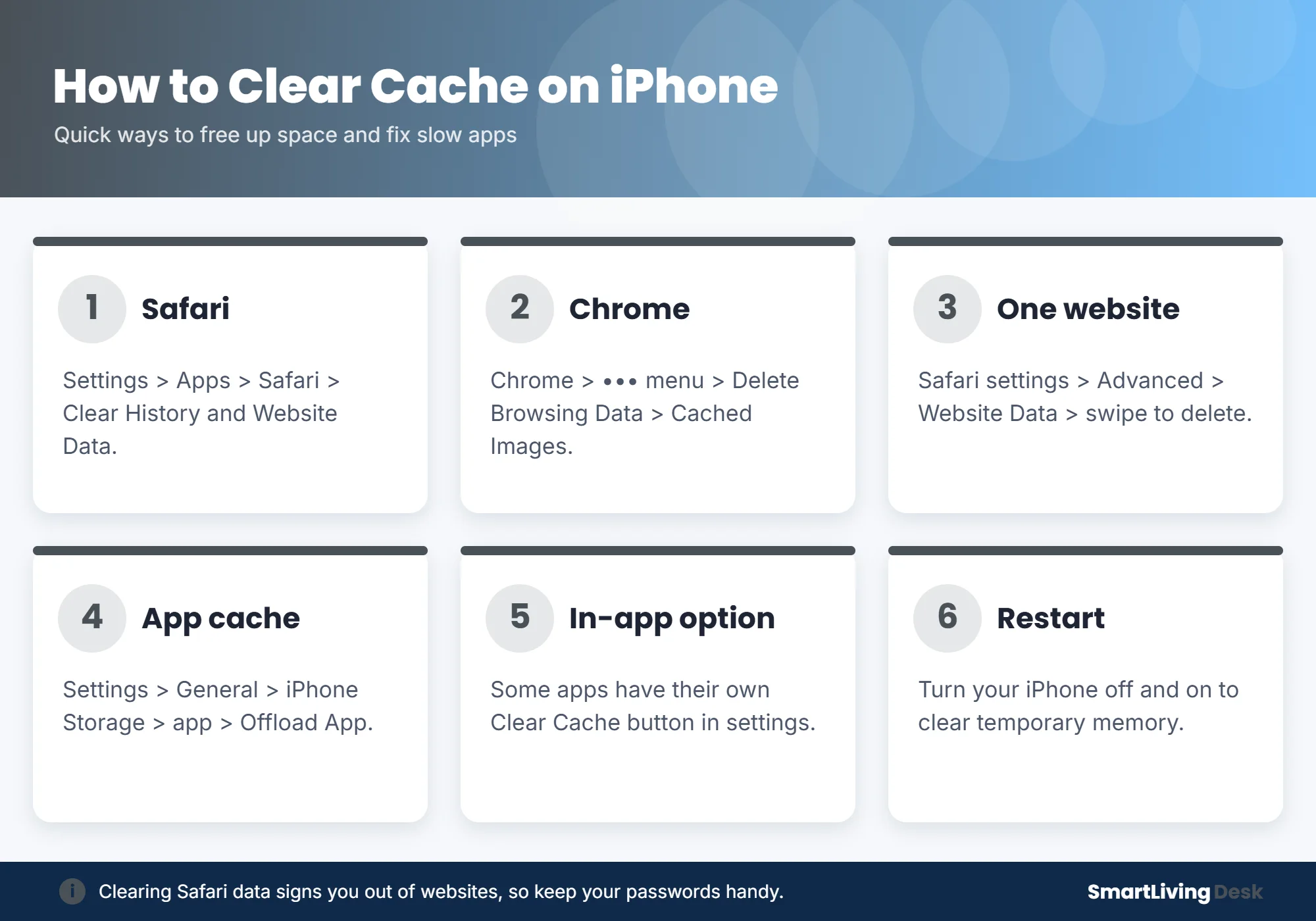
Quick answer: To clear cache on iPhone in Safari, open Settings, tap Apps, then Safari, and tap Clear History and Website Data (on older iOS versions, go to Settings > Safari). In Chrome, tap the three-dot menu, choose Delete Browsing Data and select Cached Images and Files. For other apps, go to Settings > General > iPhone Storage, choose the app and tap Offload App or delete and reinstall it.
What Is Cache and Why Clear It?
Cache stores files like images, scripts and page data so websites and apps open faster next time. Clearing it can:
- Fix websites that load incorrectly or show old content
- Free up storage space
- Speed up a sluggish browser or app
- Remove stored browsing data for privacy
The downside: you may be signed out of websites, and pages may load a little slower the first time after clearing.
How to Clear Cache on iPhone: 6 Methods
1. Clear Safari cache
- Open the Settings app.
- Tap Apps, then Safari (on older iOS versions, tap Safari directly in Settings).
- Scroll down and tap Clear History and Website Data.
- Choose the time range and confirm.
This removes your browsing history, cookies and cached files from Safari on all devices signed in to the same iCloud account with Safari syncing turned on.
2. Clear cache without deleting history
To keep your browsing history but clear stored website data, go to Safari settings, tap Advanced, then Website Data. Tap Remove All Website Data, or swipe left on a single site to delete just that one. This is handy when one website keeps misbehaving.
3. Clear Chrome cache on iPhone
- Open Chrome and tap the three-dot menu.
- Tap Delete Browsing Data.
- Choose a time range and select Cached Images and Files (uncheck history or passwords if you want to keep them).
- Tap Delete Browsing Data to confirm.
4. Clear app cache by offloading

iPhone does not have a single button to clear cache for every app. Instead, go to Settings > General > iPhone Storage, tap an app and choose Offload App. This deletes the app but keeps your documents and data; reinstall it from the same screen. To fully clear an app’s cache and stored data, choose Delete App and download it again (you may need to sign back in).
5. Use an app’s built-in clear cache option
Some apps, especially social media, streaming and messaging apps, include their own cache settings. Look in the app’s settings for options like “Storage,” “Data” or “Clear Cache.”
6. Restart your iPhone
Restarting clears temporary memory and can fix minor glitches. Press and hold the side button and either volume button, then slide to power off. Turn it back on after 30 seconds.
Which Method Should You Use?
| Problem | Best fix |
|---|---|
| One website will not load correctly | Remove that site’s data in Safari Website Data |
| Safari is slow or full of old data | Clear History and Website Data |
| Chrome is acting up | Delete cached images and files in Chrome |
| An app takes up too much space | Offload or reinstall the app |
| Phone feels sluggish overall | Restart the iPhone |
Frequently Asked Questions
Will clearing cache delete my photos or messages?
No. Clearing browser cache does not touch your photos, messages or contacts. Deleting an app can remove its local data, so make sure it is backed up first.
How often should I clear cache on iPhone?
There is no need to do it daily. Clear it when websites misbehave, storage runs low or apps feel slow, or every month or two as routine maintenance.
Does clearing cache speed up an iPhone?
It can help a slow browser or app and free up space, but it will not dramatically speed up the whole phone. Keeping iOS updated and leaving some storage free helps more.
How do I clear cache on iPad?
The steps are the same on iPad: use Safari settings, Chrome’s Delete Browsing Data, or iPad Storage to offload apps.
The Bottom Line
Now you know how to clear cache on iPhone: clear Safari history and website data, delete cached files in Chrome, offload apps that take up space and restart your phone when it feels slow. Want more phone tips? Learn how screen mirroring works or how to hide your caller ID with *67.