

How to Turn Off AI Overview on Google (Methods That Work)
You type a simple question into Google and, before any real websites, you get a big AI-generated summary. Sometimes it helps. Often it is long, vague or simply wrong, and you just want the links. It is no surprise that “how to turn off AI Overview” is one of the most searched AI questions right now.
Here is the honest answer: Google does not offer a permanent off switch for AI Overviews. But there are several reliable workarounds on desktop and mobile that bring back plain results. This guide walks through each one, plus how to deal with AI summaries in Gmail and other places, based on what actually works for users on Reddit and tech forums.
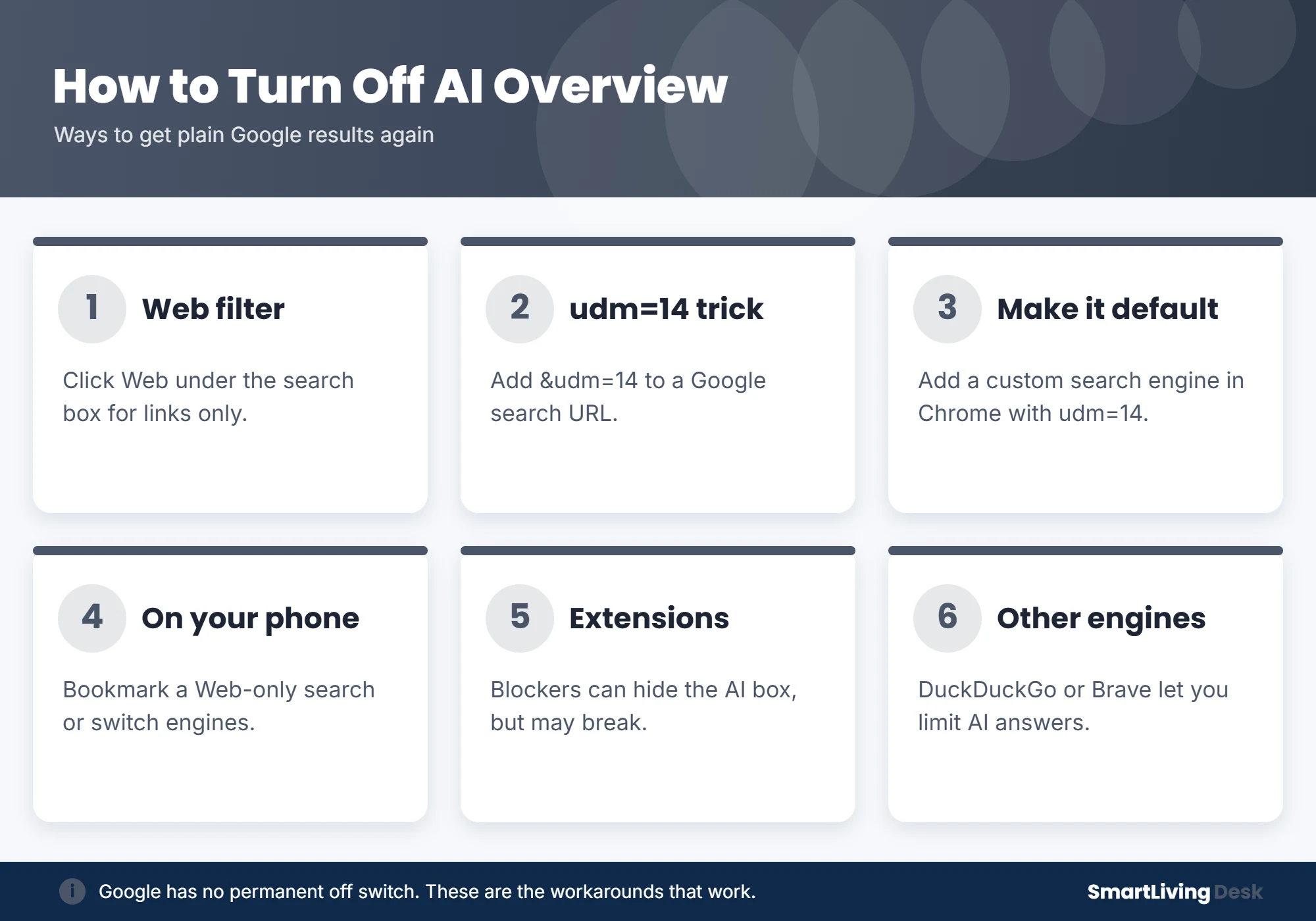
Quick answer: Google does not let you fully turn off AI Overviews, but you can avoid them. After any search, click the “Web” filter under the search bar to see only links. To make it automatic, add “&udm=14” to Google search URLs, or create a custom search engine in Chrome using https://www.google.com/search?q=%s&udm=14 and set it as your default. On phones, bookmark a Web-only search or change your default search engine. Browser extensions can also hide the AI box.
Can You Turn Off Google AI Overview Completely?
No, not with a single setting. Google treats AI Overviews as part of Search, not an optional feature, and its Search Help page explains how they work rather than how to disable them. Earlier, some users could switch off related experiments in Search Labs, but that option is not available for most people. The methods below work by sending you to Google’s “Web” results, which leave out the AI summary.

Method 1: Use the Web Filter
This is the fastest fix and works on any device.
- Search on Google as usual.
- Under the search bar, click Web. If you do not see it, click More or the three dots to find it.
- You will now see a clean list of links with no AI Overview.
The downside is that you have to do this every time.
Method 2: Add udm=14 to the Search URL
The Web filter works by adding a small parameter, udm=14, to the search address. You can add it yourself: after searching, go to the address bar, add &udm=14 to the end of the URL and press Enter.
Method 3: Make Web Results Your Default in Chrome
This is the best permanent workaround on a computer. You create a custom search engine that always uses the Web filter:
- Open Chrome and go to Settings, then Search engine, then Manage search engines and site search.
- Next to Site search, click Add.
- Name: Google Web. Shortcut: anything you like, such as gw.
- URL:
https://www.google.com/search?q=%s&udm=14 - Click Add, then click the three dots next to the new entry and choose Make default.
Now every search from the address bar goes straight to Web results. Firefox and Edge let you add a custom search engine in a similar way through their search settings.
Method 4: Avoid AI Overview on Your Phone
- Use the Web tab: In Chrome or Safari on your phone, tap Web after searching.
- Bookmark a Web-only search: Save a link like google.com/search?udm=14 to your home screen.
- Change the default engine: On iPhone, go to Settings, then Apps, then Safari, then Search Engine. In Chrome on Android, open Settings, then Search engine. Options like DuckDuckGo let you limit AI answers.
The Google app itself offers fewer options, so a browser gives you more control.

Method 5: Use a Browser Extension
Extensions such as “Hide Google AI Overviews” or a content blocker with a custom filter can remove the AI box from the page. They are convenient, but they can stop working whenever Google changes its page layout. Only install extensions with good reviews, and check what permissions they ask for.
Method 6: Try a Different Search Engine
If you are tired of workarounds, switching engines is the simplest long-term fix. DuckDuckGo and Brave Search both let you reduce or turn off AI-generated answers in their settings. Bing also has AI features, so check its settings too.
What About the “-ai” Trick?
Some people add “-ai” to the end of a search to hide the overview. It sometimes works, but it can also change your results, since Google may exclude pages that mention AI. The Web filter is more reliable.
How to Turn Off AI Summaries in Gmail
“How to turn off AI overview in Gmail” is another common question. Gmail’s AI summaries and Gemini features are tied to its smart features settings. In Gmail on a computer, open Settings, then See all settings, and look for the Smart features options on the General tab. Turning them off removes many AI features, but it can also turn off things like automatic inbox categories, so read each option before you save. For more, see our guide on how to turn off Gemini.
Frequently Asked Questions
Why can’t I turn off AI Overview in Google settings?
Google does not offer a dedicated setting. It considers AI Overviews a core part of Search.
Does the Web filter remove ads?
No. It removes the AI Overview and some other features, but ads can still appear.
Will these methods keep working?
The Web filter and udm=14 have worked reliably, but Google can change things at any time. Extensions are the most likely to break.
How do I turn off Meta AI too?
Meta AI is built into Facebook, Instagram and WhatsApp. See our guide on how to turn off Meta AI.
The Bottom Line
You cannot switch off Google AI Overviews completely, but you can skip them. Click the Web filter for a quick fix, or set up a udm=14 custom search engine in your browser so every search shows plain results automatically.
Want more practical tech tips? See how to screen record on a Mac.
Steps were accurate at the time of writing. Google updates Search often, so menu names and options may change.