
How to Connect a PS5 Controller to PC (Bluetooth and USB)
The PS5 DualSense is one of the most comfortable controllers around, and you do not need a second controller for your PC. You can connect it with Bluetooth or a simple USB-C cable and use it in Steam, Epic and most modern PC games.
This guide shows how to connect a PS5 controller to a PC both ways, how to set it up in Steam, what to do when it will not pair, and how to switch it back to your PS5. It also covers the questions gamers ask most on Reddit, like whether haptics work on PC.
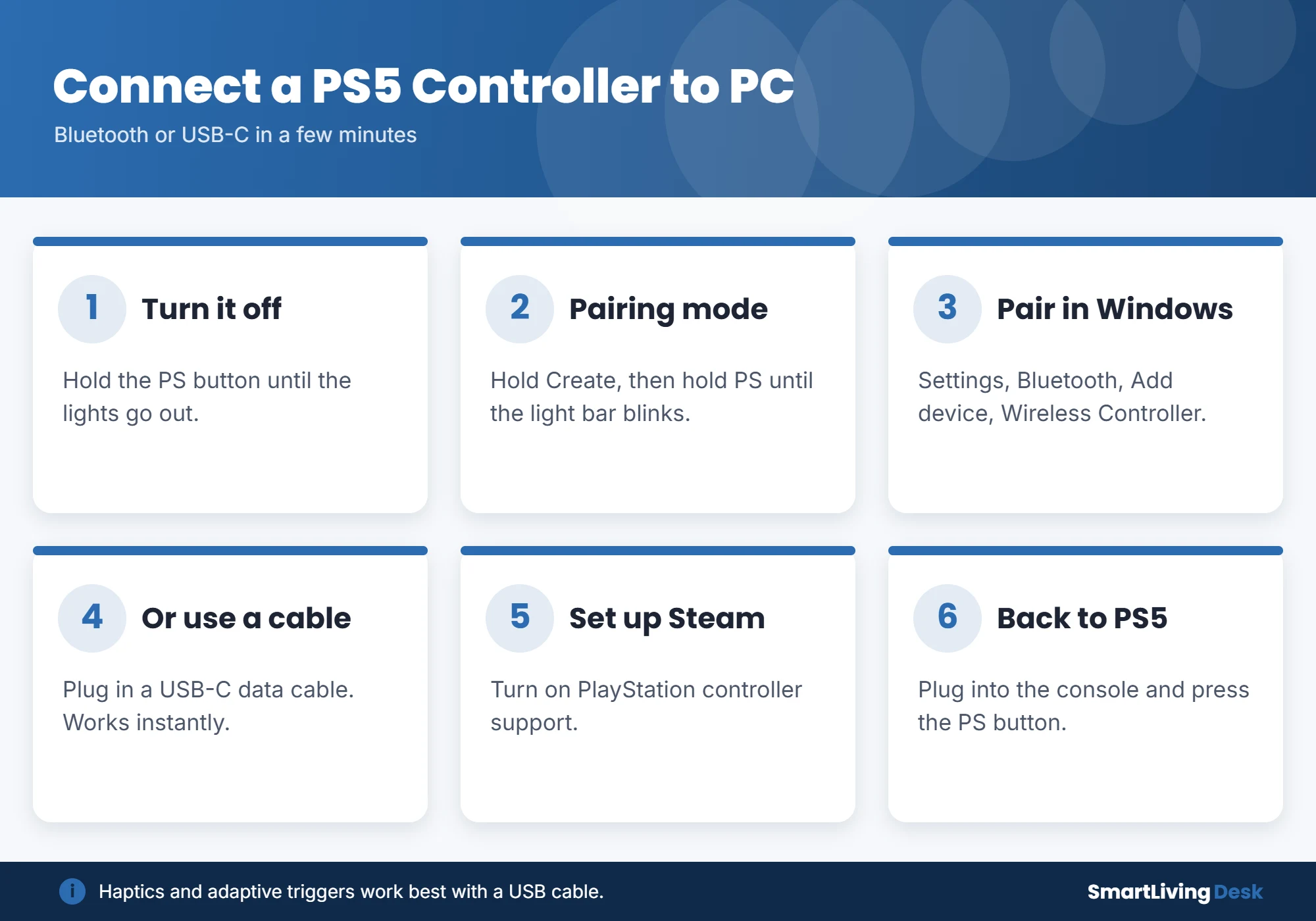
Quick answer: To connect a PS5 controller to a PC with Bluetooth, turn the controller off, then hold the Create button and the PS button together until the light bar blinks. On your PC, open Settings, then Bluetooth & devices, click Add device, choose Bluetooth and select Wireless Controller. To connect with a cable, just plug the controller into your PC with a USB-C data cable. In Steam, turn on PlayStation Controller Support in the Controller settings.
Method 1: Connect a PS5 Controller to PC With Bluetooth
These steps follow PlayStation’s official pairing guide:
- Turn off the controller. If the lights are on, press and hold the PS button until they go off. Unplug any cable.
- Enter pairing mode. Hold the Create button (the small button left of the touchpad), then press and hold the PS button until the light bar starts blinking quickly.
- Open Bluetooth on your PC. In Windows 11, go to Settings, then Bluetooth & devices, then Add device, then Bluetooth. In Windows 10, go to Settings, then Devices, then Add Bluetooth or other device.
- Select “Wireless Controller.” When pairing finishes, the light bar stops blinking and the player light turns on.
Your PC needs Bluetooth. Most laptops have it built in. Many desktops need a small USB Bluetooth adapter.

Method 2: Connect With a USB-C Cable
This is the easiest option. Plug the controller into your PC using a USB-C cable that supports data (some cheap cables only charge). Windows detects it automatically. PlayStation notes that haptic feedback on PC requires a USB connection, so a cable is the better choice if you want the full DualSense experience in supported games.

How to Use a PS5 Controller in Steam
- Open Steam and go to Settings, then Controller.
- Turn on Enable Steam Input for PlayStation controllers (wording varies by version).
- Your controller should appear. You can test buttons and remap controls here.
- On a game’s store page, check Controller Support to see if it has full DualSense support.
Many newer PC games, especially PlayStation ports, support the DualSense natively with the right button prompts, haptics and adaptive triggers.
PS5 Controller Not Connecting to PC? Try This
- Charge it first. A very low battery can stop pairing.
- Remove the old pairing. In Bluetooth settings, remove “Wireless Controller” and pair again.
- Try a different USB-C cable. Charge-only cables will not connect.
- Turn off the PS5 or move away from it, since the controller may reconnect to the console.
- Update the controller with the PlayStation Accessories app for Windows.
- Reset the controller by pressing the tiny reset button on the back with a pin for about 5 seconds.
How to Reconnect Your Controller to the PS5
Connect the controller to the PS5 with a USB cable, press the PS button, then unplug it. It will work wirelessly with the console again. You will need to pair it with your PC again the next time you switch back, unless you use the multi-device pairing slots available after recent controller updates.
Frequently Asked Questions
Do PS5 controllers work with all PC games?
Most modern games support controllers. Through Steam Input, the DualSense works even in many games built for Xbox controllers.
Do haptics and adaptive triggers work on PC?
In supported games, yes, and usually only over a USB connection.
Can I connect a PS5 controller to a Mac?
Yes. Use the same pairing mode, then select it under System Settings, then Bluetooth.
Do I need DS4Windows?
Usually not. Steam Input and native support cover most games. Some players still use third-party tools for non-Steam games.
The Bottom Line
To connect a PS5 controller to PC, hold Create and PS until the light bar blinks, then pair it in Windows Bluetooth settings, or simply plug it in with a USB-C data cable. Turn on PlayStation support in Steam, and use a cable for full haptic feedback.
More gadget help: how to reset AirPods, how to clean AirPods and how to screen record on a Mac.
Menu names vary by Windows version and Steam updates. PlayStation and DualSense are trademarks of Sony Interactive Entertainment.